Last year during our Aurora tour, John Barclay introduced us to Topaz products. I was pretty impressed by them. One of them was their Clear AI (Artificial Intelligence).
Topaz has since replaced Clear AI and their old DeNoise plug-in with DeNoise AI, some of you may already be using it.
The reviews I read were positive so I tried the trial version. I was very impressed.
I’ve usually used Lightroom noise reduction for the most part, but there is only so far you can go before the details start getting mucked up. But with DeNoise AI, I’m able to pretty much eliminate the noise without adversely affecting details.
Now, where this really comes in for me is in night and aurora shooting. Using high ISO means more noise. And you get more noise in darker areas. And the night sky is dark so…noise! Even with a low noise camera like my Nikon D810, there’s still going to be noise at night.
In Lightroom I can reduce this noise, but only so far. Like I said above, you’ll start losing detail, and in the case of aurora/night photography, that means stars start getting fuzzy.
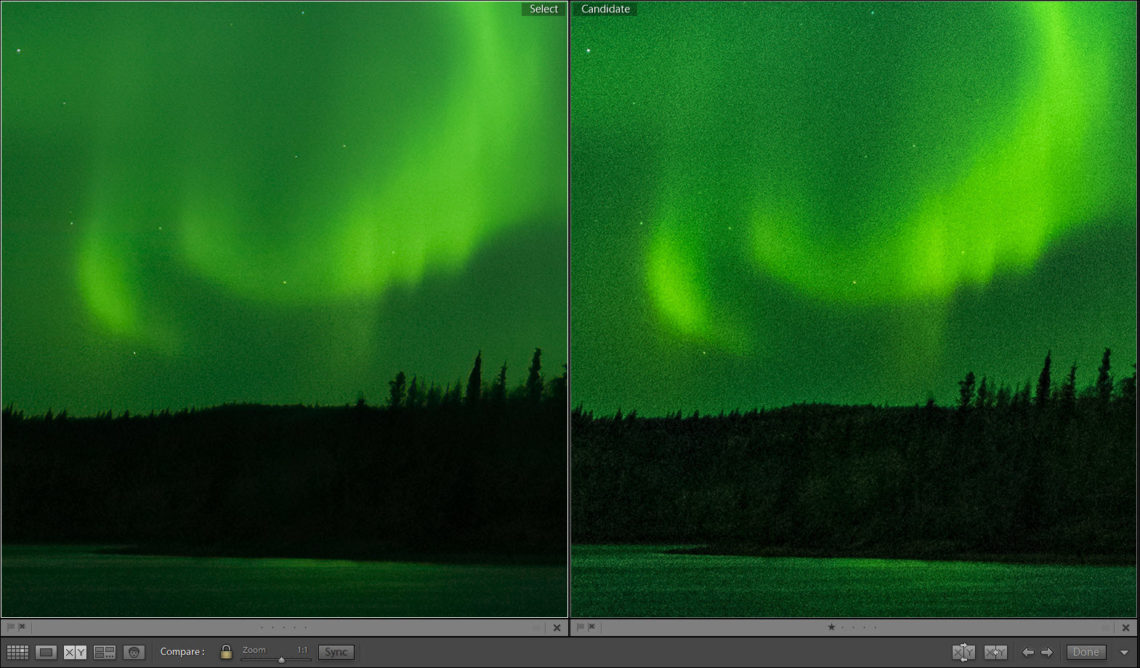
So I was pretty much blown away by what DeNoise AI does with aurora pictures. The noise is virtually gone and the stars don’t get fuzzed. In fact, they look even better.
Now I want to go back through my old aurora pictures….
To be fair, I’ve not used many other noise reduction utilities. I had Nik DFine, but honestly, that was quite a while ago and I just don’t remember how well it worked.
More recently I’ve used Imagenomic’s Noiseware. I just updated my copy to compare with DeNoise AI, and frankly, they both did a great job. The disadvantage that Noiseware has is that it’s only a Photoshop plug-in whereas Denoise AI is a Lightroom/Photoshop plug-in as well as a stand-alone utility. Being able to use it directly from Lightroom fits better with my workflow.
Denoise AI also allows you to save the processed image as a DNG file. It will be a new file with -denoise appended to the filename. Otherwise, you open images from Lightroom in Denoise AI by the usual right-click > Edit In method and it will create a new file with the _Edit suffix, and that’s what gets saved back into Lightroom.
One thing to note, this software is resource intensive. Topaz states that you need a video card with a minimum of 2 GB video ram, recommends 4 GB video ram, and says that 8 GB of video ram is optimal. I can attest to this.
When first trying it out, everything took f o r e v e r.
Just updating the preview took many, many seconds. And saving the image? Well that took about 10 minutes. The reason? My video card had only 1 GB of video RAM.
I put in a new card that has 4 GB of video ram and things are a lot faster. It still takes some time to save out an image, but it’s not bad.
Below is an example. The image on the right is straight from Lightroom. The one on the left is after running it through DeNoise AI. Look especially at the details in the trees.
But give it a try for yourself by downloading the trial version. I don’t have any affiliation with Topaz, I was just really impressed by what this program could do and wanted to pass this along.